


Built On The Current Microsoft Method
MaxelTracker uses the Workflows app powered by Power Automate to create incoming webhooks. Setup happens inside Teams, in the channel itself, with no developer portal to visit.




Connect MaxelTracker with Microsoft Teams to get your team's productivity reports delivered straight into a Teams channel. Daily and weekly summaries arrive as a downloadable report, so managers stay informed without opening the dashboard.
Connect Microsoft Teams and MaxelTracker sends your productivity reports into the channel you choose. No one has to log in to find out how the team is doing.

Use the Workflow app, powered by Power Automate, to connect Microsoft Teams with MaxelTracker. This is because Microsoft has retired Office 365 Connectors. Incoming webhooks are now created with the Workflows app and set up directly from your Teams channel. Generate the webhook URL in Teams and then paste it into MaxelTracker.
Under Team Notifications, open the Microsoft Teams card, then click Add Webhook.
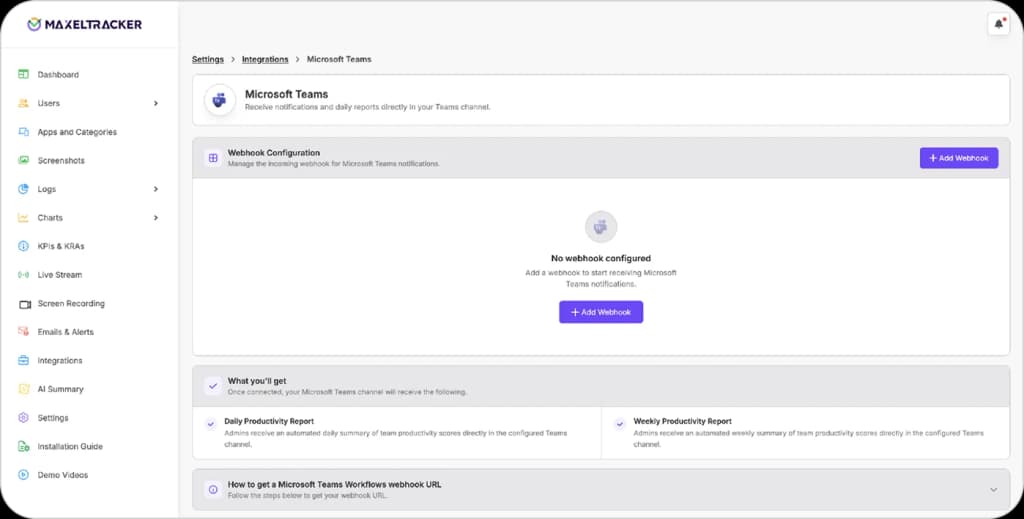
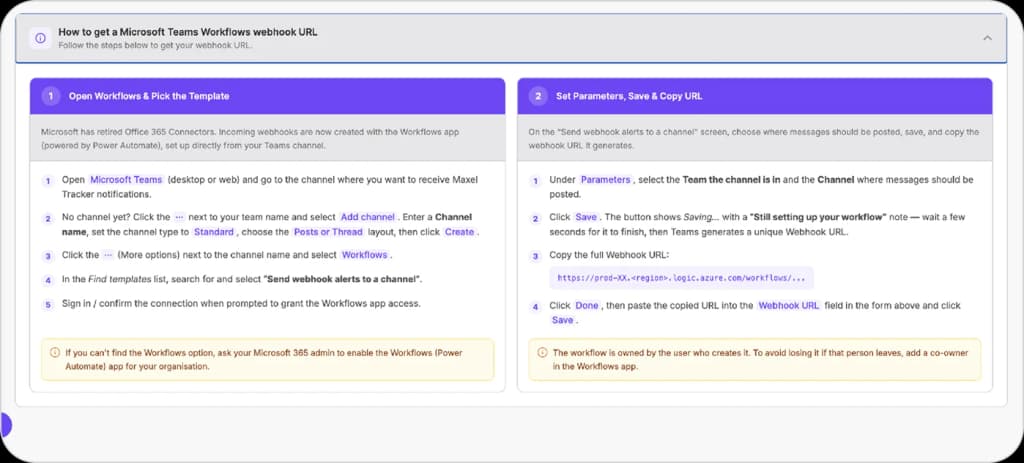
Open Microsoft Teams on desktop or web and select the channel where MaxelTracker notifications should appear. If you need a new one, click the ellipsis next to your team name, select Add channel, name it, set the channel type to Standard, choose the Posts or Thread layout, and click Create.
Click the ellipsis next to the channel name and select Workflows.
In the Find templates list, search for and select “Send webhook alerts to a channel”. Sign in or confirm the connection when prompted to grant the Workflows app access.
Under Parameters, select the team the channel belongs to and the channel where messages should be posted.
Click Save. The button shows “Saving” with a “Still setting up your workflow” note. Give it a few seconds to finish, and Teams will generate a unique webhook URL. Copy the full URL, then click Done.
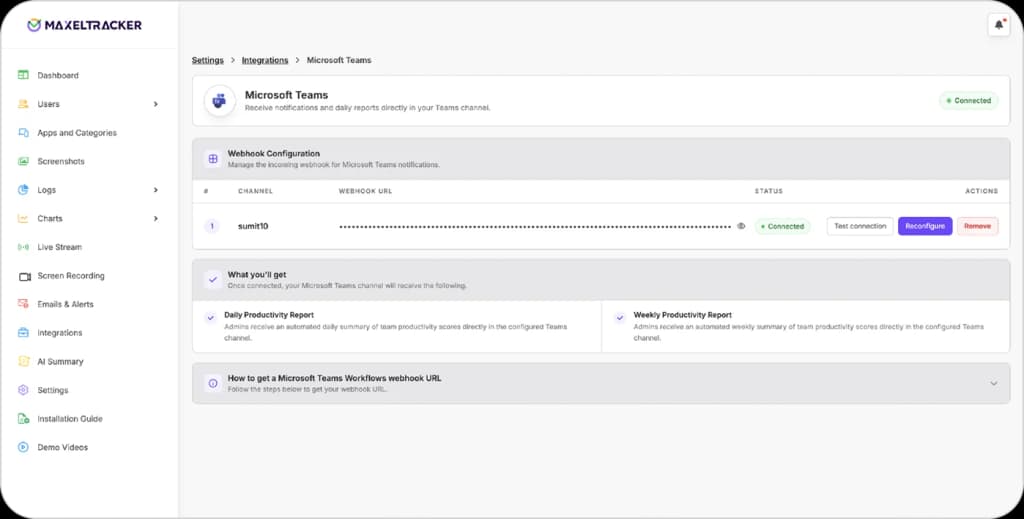
Back on the Microsoft Teams integration screen, enter the channel name and paste the webhook URL, then click Save.
The channel appears in your webhook list with a Connected status. Use Test connection to send a test message, and Reconfigure or Remove whenever you need to change it.
Note: The Workflows (Power Automate) app must be enabled for your organization by a Microsoft 365 admin, or the Workflows option will not appear in the channel menu. And the workflow is owned by whoever creates it, so a co-owner should be added in the Workflows app to avoid losing the connection if that person leaves.
MaxelTracker uses the Workflows app powered by Power Automate to create incoming webhooks. Setup happens inside Teams, in the channel itself, with no developer portal to visit.

Each card states the report period and when it was generated, and carries a Download Report button. The report itself comes through in Excel, so the numbers can be filtered, shared, or dropped into whatever the team already uses for reviews.

Your connected channel is listed with its status, so you can see at a glance that reports are getting through. Send a test message to confirm delivery, reconfigure the channel when something changes, or remove it entirely. The webhook URL stays masked in the list until you choose to reveal it.

Put the daily and weekly numbers where your team already talks. Free for 10 days, up to 10 users, and no credit card required.