





MaxelTracker Logo
Clickup integration banner
Slack logo

Slack Integration With MaxelTracker

Connect MaxelTracker with Slack to get your team's productivity reports delivered straight into a Slack channel. Daily and weekly summaries arrive as a downloadable report, so managers stay informed without opening the dashboard.

No Credit Card Required

Get Productivity Reports Delivered To Your Slack Channel

Connect Slack and MaxelTracker sends your productivity reports into the channel you choose. No one has to log in to find out how the team is doing.

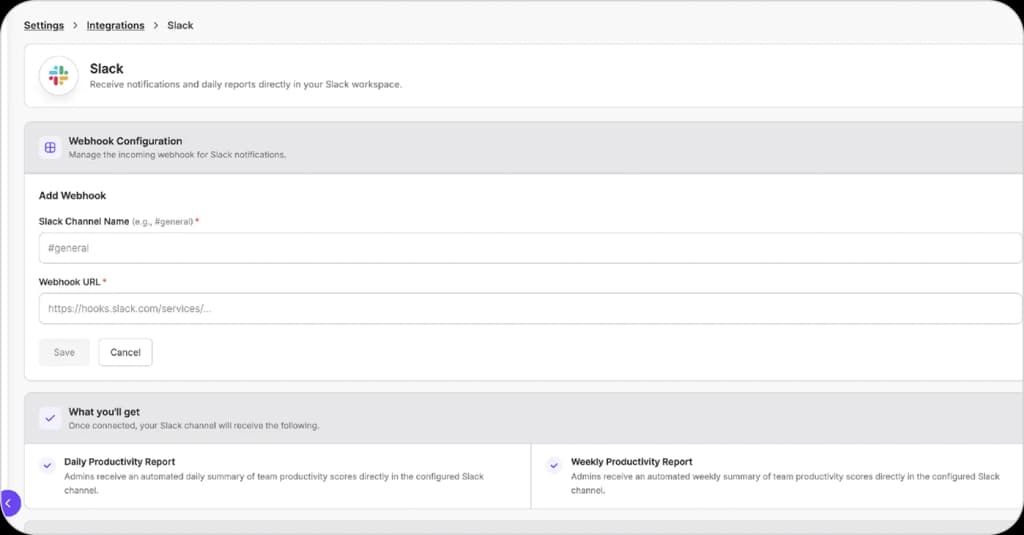
  • Connect your channel:Add a webhook for the Slack channel you want reports in. Name the channel, paste the webhook URL, and save.
  • Daily Productivity Report:An automated daily summary of team productivity scores, delivered to the configured Slack channel.
  • Weekly Productivity Report:An automated weekly summary of team productivity scores, delivered to the same channel.
  • Download from the message:Each report arrives as a Slack message with the report period, when it was generated, and a Download Report button. Reports are delivered in Excel format.
Get Productivity Reports

How To Connect MaxelTracker With Slack

Setup has two parts. First, you generate an incoming webhook URL in Slack, then you paste it into MaxelTracker. The Slack side is a one-time job and needs someone with permission to install apps in your workspace.

1

Open Settings > Integrations in MaxelTracker:

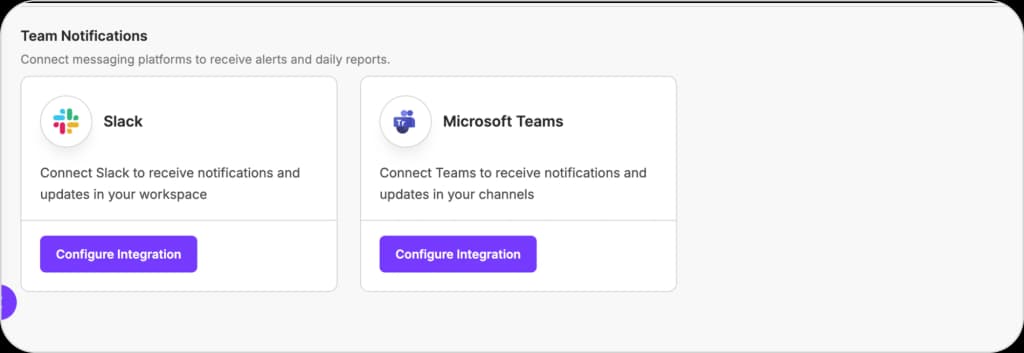
Under Team Notifications, find the Slack card and click View.

team-slack
2

Create a Slack app:

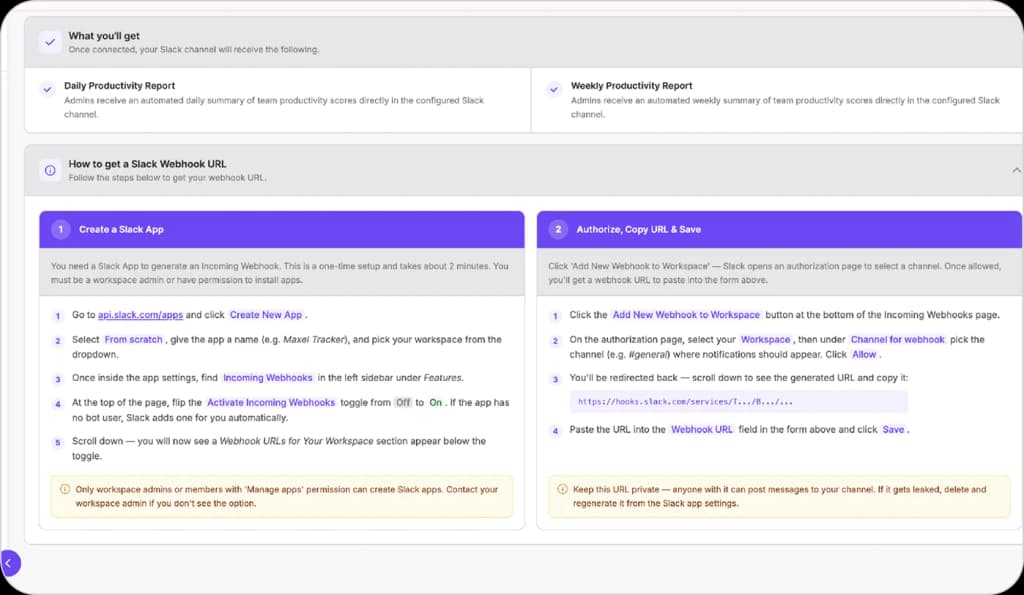
Go to api.slack.com/apps and click Create New App. Choose From scratch, give the app a name, and pick your workspace.

3

Turn on incoming webhooks:

In the app settings, open Incoming Webhooks under Features and switch Activate Incoming Webhooks from Off to On. Slack adds a bot user automatically if the app does not have one.

4

Authorize a channel:

Click Add New Webhook to Workspace. On the authorization page, select your workspace, choose the channel where reports should appear, and click Allow.

5

Copy the webhook URL:

You are returned to the Incoming Webhooks page. Scroll down and copy the generated URL.

webhook url
6

Add the webhook in MaxelTracker:

Back on the Slack integration screen, enter the Slack channel name and paste the webhook URL, then click Save.

slack integration screen
7

Confirm it is working:

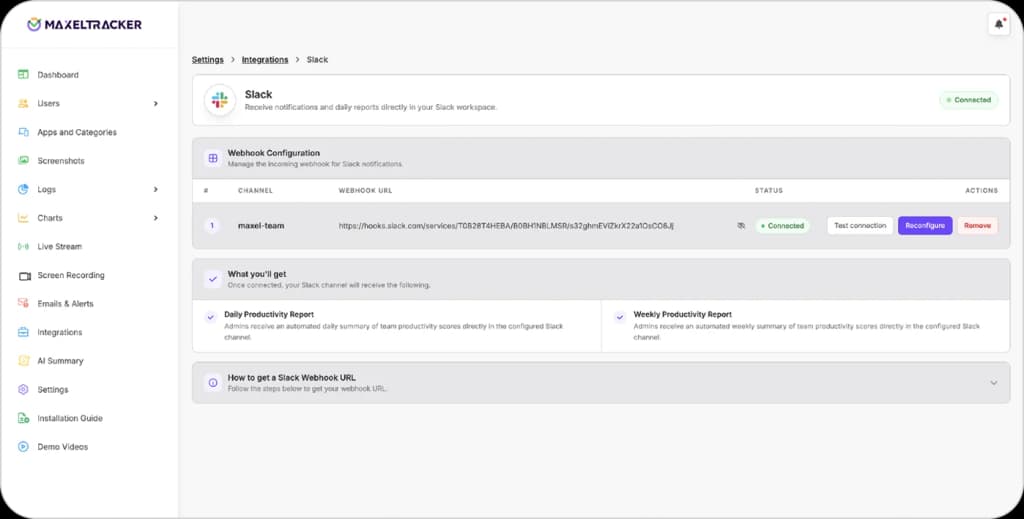
The channel appears in your webhook list with a Connected status. Use Test connection to send a test message, and Reconfigure or Remove whenever you need to change it.

connected status

Note: Only Slack workspace admins or members with the Manage apps permission can create a Slack app. Anyone without it will not see the option and needs to ask their workspace admin.

Work Smarter with a Powerful Integration

Reports work

Reports Reach People Where They Already Work

A report nobody opens is not reporting. Sending the daily and weekly summaries into a Slack channel puts them in front of the people who need them, in the place they already have open, without asking anyone to remember to check a dashboard.

Reports open

A Report You Can Actually Open

Each message states the report period and when it was generated, and carries a Download Report button. The report itself comes through in Excel, so the numbers can be filtered, shared, or dropped into whatever the team already uses for reviews.

connected icon

Connected Once, Managed From One Screen

Your connected channel is listed with its status, so you can see at a glance that reports are getting through. Send a test message to confirm delivery, reconfigure the channel when something changes, or remove it entirely. The webhook URL stays masked in the list until you choose to reveal it.

Frequently Asked Questions

Yes. Connect the two from Settings > Integrations in MaxelTracker by adding an incoming webhook for the Slack channel you want. Once connected, MaxelTracker posts productivity reports into that channel.

Get Your Productivity Reports In Slack Today

Put the daily and weekly numbers where your team already talks. Free for 10 days, up to 10 users, and no credit card required.